How opt-in works
PIJ Texting · Evidence of consent · Last updated August 8, 2026
This page documents exactly how the single recipient of this messaging program gives consent. It exists so that carriers and reviewers can verify the opt-in flow, which happens inside a desktop application rather than on a public web form.
There is one recipient: the owner of the application, at their own mobile number. There is no public sign-up, no web form, no purchased list, and no way for any other person to be added. Consent is given by the owner, to themselves, inside software running on their own computer.
The consent steps
- The owner installs the Personal Intelligence Journal application on their own computer.
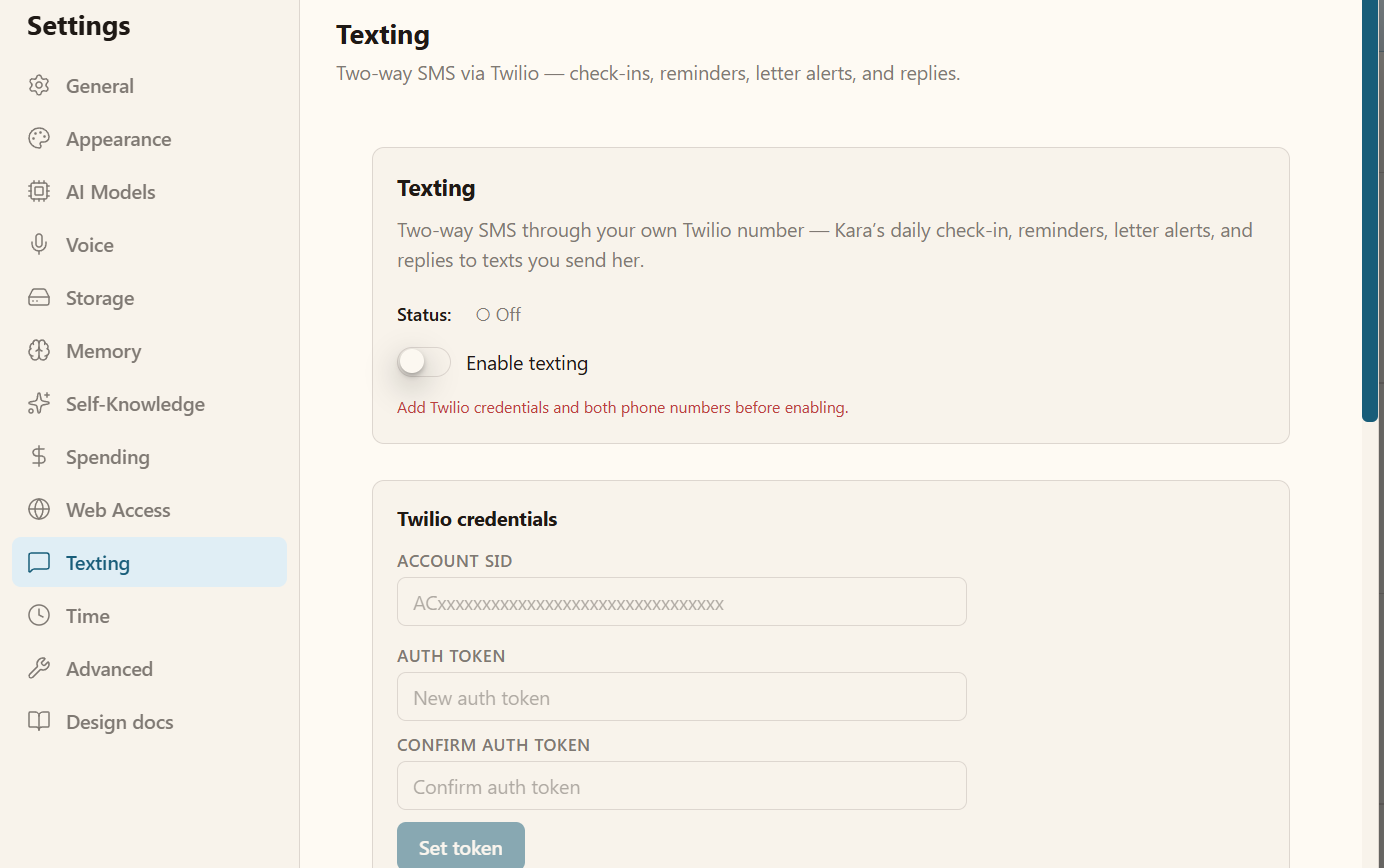
- They open Settings → Texting. Messaging is off by default, as shown in the first screenshot below ("Status: Off").
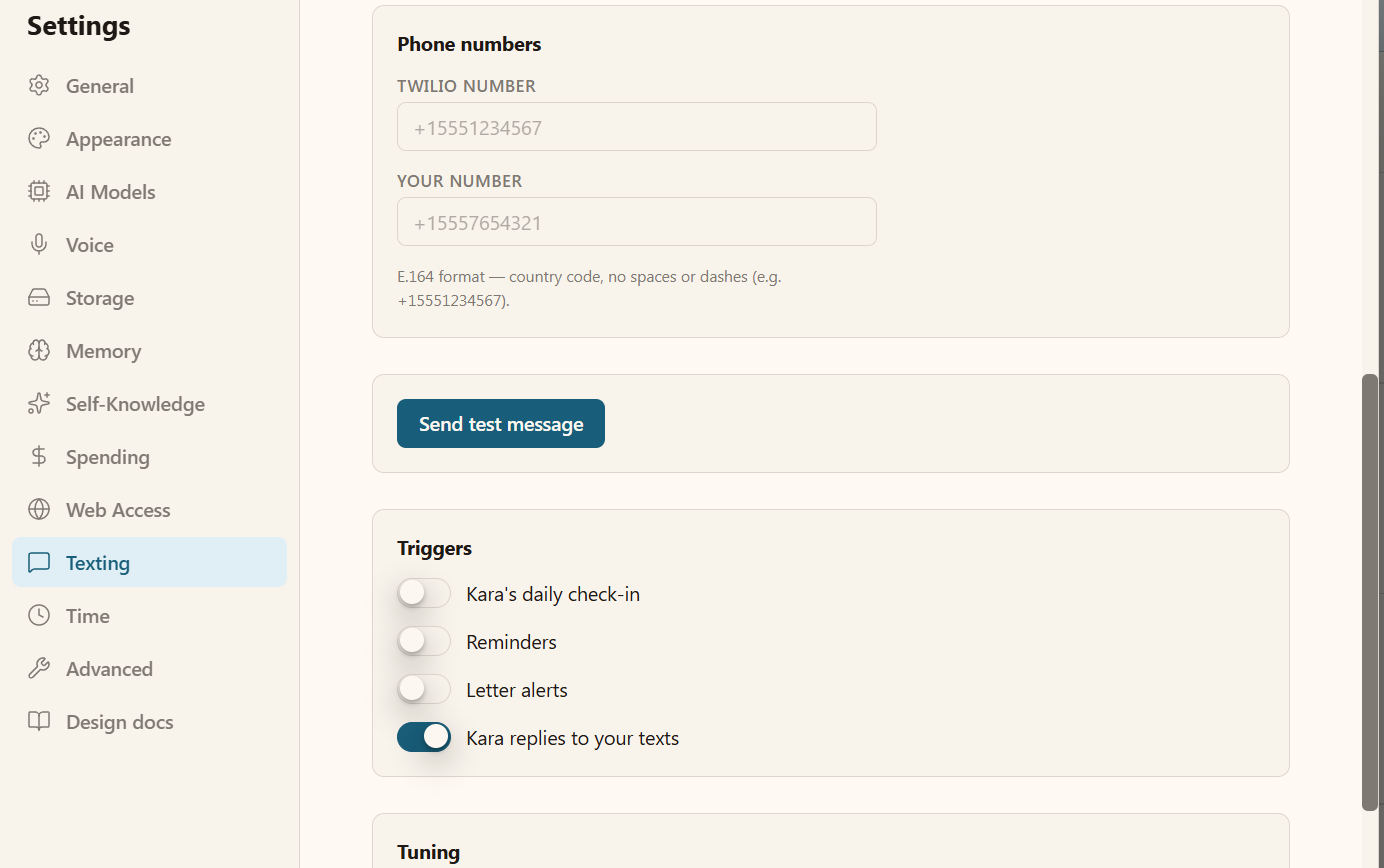
- They enter their own Twilio credentials, then type their own mobile number into the field labeled "YOUR NUMBER" — the second screenshot below. This is the number that will receive every message. The application will never send to any other number.
- They choose which message types they want by toggling Triggers: daily check-in, reminders, letter alerts, and replies.
- They turn on the "Enable texting" switch. No message is sent before this switch is enabled.
- They press "Send test message", and the first message they receive carries the required disclosure: "PIJ test message. Msg & data rates may apply. Reply STOP to opt out, HELP for help."
Screenshots of the opt-in screen
Opting out
Reply STOP to any message to stop all messages. Reply HELP for help. The owner can also switch "Enable texting" off in the same settings panel at any time, which immediately stops all sending and receiving.
Message frequency and cost
Message frequency varies, depending on which triggers are enabled and how many reminders the owner created. The application enforces a daily cap, set to 25 messages per day by default. Message and data rates may apply.